Google Drive
Google LLCProductivity
4.3179.44K Reviews
- Version
- Varies With Device
- Installs
- 10.00B
- Age Rating
- Everyone
Screenshots
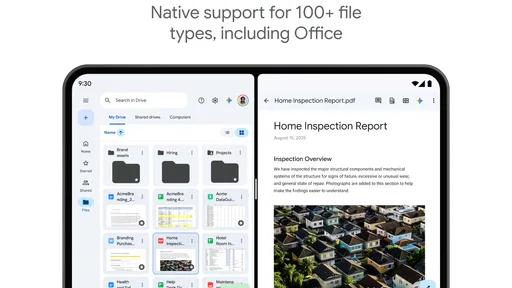
Our Review of Google Drive
 Analysis by Appyee
Cloud storage works best when it supports a routine you already understand, rather than becoming another place to tidy up. I find Google Drive most useful when I decide what belongs there, how I will name it, and who needs access before I start uploading. Without that small plan, even a capable file library can turn into a pile of documents that is hard to search.
Start with the handoffs in your day
Before moving everything into a cloud account, I would identify the moments when files change hands: a phone photo that needs to reach a laptop, a draft that a colleague must review, or a receipt I may need later. Those are practical starting points because Drive can make files available across devices and simplify sharing. It is less compelling as a cure for a workflow that has no clear naming or filing habits.
A useful distinction is between files that are merely stored and files that are active. I keep current work easy to find, while older material goes into a clearly named archive. That approach matters more than creating a deep maze of folders. If I cannot remember where I filed something, Drive’s search can help, but a consistent title still makes the next retrieval quicker.
Capture first, organize with intent
On a busy day, I would use the phone as a quick capture point for a document or image, then sort it into a folder when I have a moment. This avoids delaying the capture just because I have not settled on the perfect folder. The trade-off is that an unreviewed inbox folder can become its own backlog, so I would give it a regular cleanup slot rather than treating it as permanent storage.
For shared work, I recommend choosing permissions deliberately. A person who only needs to read a file should not automatically receive editing access; someone reviewing a draft may benefit from commenting, while a collaborator responsible for changes needs edit rights. Checking that choice before sending a file is a small step that can prevent accidental edits and reduce confusion later.
It also helps to think about the file’s working format. When a team is actively writing or revising, Google Docs, Sheets, and Slides can keep the work moving in their own collaborative formats. Drive is then the place to find and organize those items, not a substitute for agreeing on how a team will name drafts, assign ownership, or signal that a document is final.
A routine that keeps the library usable
I would build a simple weekly habit around three actions: review recent uploads, move completed work out of active folders, and check the files I have shared. This is not busywork for its own sake. It gives the system a reset point, makes old drafts less likely to be mistaken for current ones, and gives me a chance to remove access that is no longer needed.
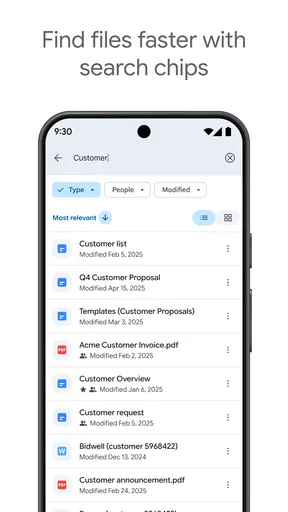
Search is especially helpful when I remember a phrase from a document but not its folder. Since Drive can look for text inside documents and PDFs, I can search for a distinctive term rather than opening folders one by one. A practical tip is to use a specific word from the file, not a broad search such as “notes” or “plan”; generic terms tend to produce more candidates and make the advantage less noticeable.
Stars can act as a short-term “come back to this” signal, but I would not use them as a second filing system. If everything is starred, the marker stops helping. I prefer reserving it for a handful of items that I need to reach quickly, then removing the star once the task is done.
Know where the friction appears
Cloud access depends on having a usable connection when you need to fetch or share material, so I would not assume that every file will be available in every situation without preparation. For travel, meetings in unreliable reception, or work that cannot pause, I would check beforehand that the needed material is available on the device or keep an appropriate separate copy. A cloud library is convenient, but it is not a replacement for thinking through offline needs.
Storage also deserves attention. A free Google account includes 15GB shared across Google services, so someone who already keeps a lot of mail, photos, or other material there may find that their available room is tighter than expected. If you need more, paid storage options are offered through Google One. I would check the account’s storage use before moving a large archive, rather than discovering a space limit halfway through the job.
Sharing is another area where convenience needs care. A file can be easy to send, but that does not mean every recipient should retain access indefinitely. For sensitive material, I would pause to confirm the audience and permission level, and revisit shared access when a project ends. People who need strict control over where files are stored may also prefer a workplace-managed service with policies set by their organization.
Where Drive fits among the alternatives
As a productivity app from Google LLC, Drive makes the most sense for people who already use a Google account and work with Docs, Sheets, or Slides. Compared with a basic file-sync service, its appeal is not just keeping files in the cloud; it is the way the library connects with document collaboration and sharing. In contrast, someone whose team is committed to another office suite may find that team’s native storage feels more natural and requires fewer changes to established habits.
Compared with storing everything locally, Drive offers easier access across devices and simpler handoffs, but local folders can feel more immediate and do not depend on a network for files already on the computer. I see the choice as a workflow decision, not a contest with one universal winner. You can also keep a local working copy for material that must be available offline while using Drive for collaboration and access elsewhere.
Google Drive is a free productivity app for Everyone, with optional in-app purchases ranging from $0.99 to $1,024.00 per item. Its average rating is 4.3 from around 11 million ratings, and it has over 10 billion installs. Those figures suggest a widely used service, but they do not tell me whether it fits a particular team’s rules or storage habits. I would choose it for convenience and collaboration, not simply because it is familiar.
A realistic day with shared files
Imagine I am preparing a short presentation for a meeting. I save the working file where I can find it, share it with a colleague who needs to comment, and keep edit access for the person building the slides with me. Before the meeting, I search for a phrase from the title rather than scrolling through folders. Afterward, I move the finished item out of my active-work area and review whether everyone still needs access. That sequence turns several small features into a repeatable process.
The same pattern works for household paperwork: keep documents together under plain, recognizable names, share only the items another person needs, and use search when a date or folder slips your mind. I would avoid treating Drive as a complete records-management system, though. If a document has legal, financial, or organizational retention requirements, follow the relevant rules and keep any required backup rather than relying on a casual folder habit.
Who will get the most from it
I would recommend Drive to students moving between a phone and a computer, families sharing selected files, and small teams already comfortable with Google’s document tools. It is particularly useful when a file needs to travel between people or devices without repeated emailing and manual copies. Google lists its release date as Apr 27, 2011, and its long history is reflected in how familiar the basic file-and-folder model feels to many users.
I would hesitate if you want a strictly offline library, dislike managing access, or need your organization’s files governed by controls that only its administrator can set. I would also skip it as the central answer if your collaborators consistently use another office platform and do not want to switch. In those situations, the tool that fits the group’s existing process may save more time than a larger feature set.
For someone trying it for the first time, I suggest starting with one project rather than uploading an entire device. Make a small folder structure, test sharing with a non-sensitive file, and confirm how the same item appears on the devices you use. That gives you a low-risk way to judge whether the workflow feels natural before you depend on it for important material.
Ever found yourself juggling between multiple devices and desperately wishing for a seamless way to store and access your files? Well, let me introduce you to Google Drive, a lifesaver in the world of cloud storage. This app isn’t just a storage solution—it's a complete ecosystem that syncs across your devices, making your life a tad bit easier.
Getting Started with Google Drive
First off, installing Google Drive is as straightforward as it gets. You can grab it from the Google Play Store or the Apple App Store, and in no time, you’re all set up. Once you log in with your Google account, a world of possibilities opens up.
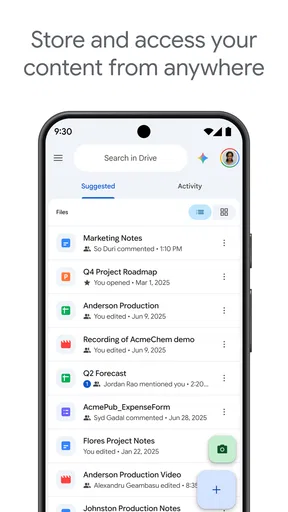
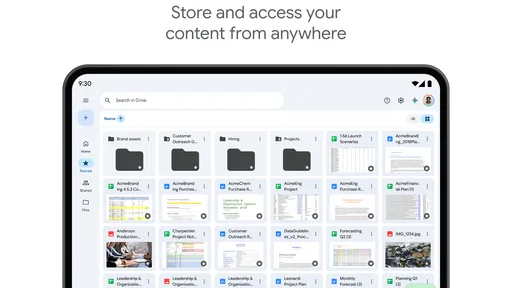
The interface is pretty intuitive. You get a neat layout with folders and files, much like your desktop. It's all about drag and drop simplicity. If you’re someone who loves organization, Google Drive lets you create folders, color code them, and even add stars to your most important files for easy access.
Feature-Packed Experience
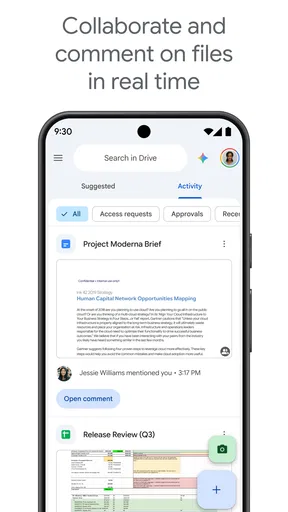
One of the standout features of Google Drive is its collaboration capabilities. Whether you’re working on a school project or a business presentation, this app allows you to share files with others effortlessly. You can grant them permission to view, comment, or edit, making teamwork a breeze.
Another gem is the app’s integration with other Google services. You can seamlessly work with Google Docs, Sheets, and Slides directly within the app. It's like having a mini office suite at your fingertips, wherever you go.
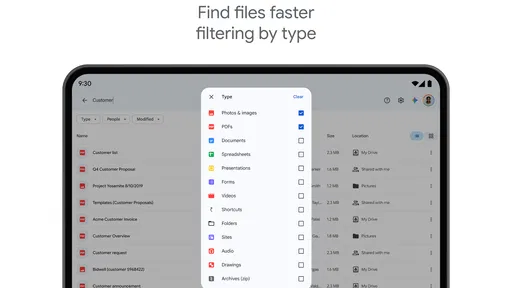
Let’s not forget about the search functionality. Google Drive’s search prowess is second to none. You can type in keywords, and it’ll pull up the relevant files in seconds. Plus, it can even search text within documents and PDFs. Magic, right?
Security and Storage
Now, on to something we all worry about: security. Google Drive employs top-notch encryption to keep your files safe. You can also enable two-factor authentication for that extra layer of protection. It’s like having a security guard for your digital treasure trove.
As for storage, you get a generous 15GB for free with your Google account. Need more? They’ve got you covered with various storage plans under Google One. It’s perfect for when your storage needs grow alongside your digital collection.
Real-World Applications
Personally, I’ve found Google Drive to be an invaluable tool for both work and personal projects. Imagine being able to pull up a presentation on your phone during a meeting or sharing vacation photos with family across the globe without a hitch. It truly bridges the gap between convenience and efficiency.
For students, it’s a game-changer. You can take notes in class, save them to the cloud, and then access them from your laptop when you’re back in your dorm. Everything’s in sync, so you never have to worry about losing important documents.
Final Thoughts
In the world of cloud storage, Google Drive stands out as a robust and reliable option. Whether you’re a professional, a student, or just someone who likes having their files organized and accessible, this app has something for everyone.
Sure, there are other cloud services out there, but the seamless integration with Google’s suite of apps, coupled with its collaboration features, makes Google Drive a top contender. So go ahead, give it a try, and you might just wonder how you ever managed without it.
How Google Drive Compares
Full ComparisonGoogle Drive suits Google Workspace users, OneDrive fits Microsoft 365 households, and Dropbox appeals to people who value straightforward sharing and offline access.
| App | Developer | Rating | Price |
|---|---|---|---|
 Google DriveThis App | Google LLC | 4.3 | Free |
 Microsoft OneDrive | Microsoft Corporation | 4.6 | Free |
 Dropbox: Secure Cloud Storage | Dropbox, Inc. | 4.3 | Free |
Verdict
Strengths of Google Drive
- Seamless integration with other Google services.
- Generous free storage with easy upgrade options.
- Real-time collaboration on shared documents.
- Accessible from any device with internet.
- Secure and reliable cloud storage solution.
Limitations of Google Drive
- Limited offline functionality without Google Docs.
- File organization can become cluttered over time.
- Privacy concerns due to data in the cloud.
- Some features require a Google Workspace subscription.
- Large files may take time to upload or sync.
Other Releases by Google LLC
View All
Google Calendar
Productivity4.6

Google Messages
Communication4.6

Tools4.0

Google TV
Video Players & Editors3.9
Similar Picks in This Category
View AllGoogle Calendar
Google LLC4.6

Google Assistant
Google LLC3.9

Microsoft OneDrive
Microsoft Corporation4.6

Samsung Calendar
Samsung Electronics Co., Ltd.4.1

Microsoft OneNote: Save Notes
Microsoft Corporation4.6

HP Print Service Plugin
HP Inc.4.1
You May Also Like
View All


Frequently Asked Questions
What is Google Drive and how does it work?
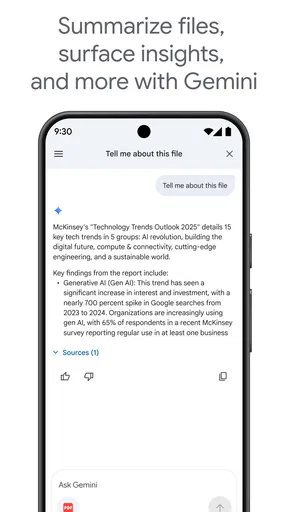
Google Drive is a cloud storage service that allows you to store files online and access them from any device with internet access. It integrates seamlessly with other Google services like Docs, Sheets, and Slides, enabling you to create, edit, and collaborate on documents in real-time. Files can be shared with others, making it a versatile tool for both personal and professional use.
How much storage does Google Drive offer for free, and what are the paid options?
Google Drive offers 15 GB of free storage space shared across Google Drive, Gmail, and Google Photos. For those needing more space, Google One provides paid plans starting at 100 GB and going up to 30 TB. These plans also include additional benefits like access to Google experts and family sharing options.
Is Google Drive secure for storing sensitive information?
Google Drive uses encryption to safeguard your files both in transit and at rest. While it provides a secure environment for storing data, users should implement additional security measures such as two-factor authentication and strong passwords for added protection. Always be mindful of sharing permissions to ensure sensitive information remains private.
Can I use Google Drive offline, and if so, how?
Yes, Google Drive can be used offline. You need to enable offline access through the Google Drive settings. Once enabled, you can view, edit, and create documents without an internet connection. Changes made offline will automatically sync with your Drive once you're back online, ensuring your files are always up to date.
How do I share files and collaborate with others on Google Drive?
Sharing files on Google Drive is simple. You can share a file or folder by clicking the ‘Share’ button and entering the email addresses of the people you want to share with. You can control their access level, allowing them to view, comment, or edit the files. Real-time collaboration is possible, making it an excellent tool for teamwork and projects.
